

zenSurveys supports multilingual surveys and translated text responses. Survey language settings decide what respondents see when they open a survey. Response translations help teams review written feedback across languages when translation data is available.
Use this article if you want to understand why a respondent sees a specific survey language, when the language selector appears, how to filter responses by comment language, or why translated answers appear in a response.
How zenSurveys Chooses the Survey Language
When a respondent opens a survey, zenSurveys checks the available survey languages and uses the first matching signal in this order:
- The
localeorlangvalue in the survey URL. - The respondent's previously selected language for your organization.
- The survey's saved locale.
- The respondent's browser language, if that language is available in the survey.
- The survey's creation or default language.
- The survey default, or the first available language.
If a requested language is not available in the survey, zenSurveys falls back to the next available option.
Show the Language Selector
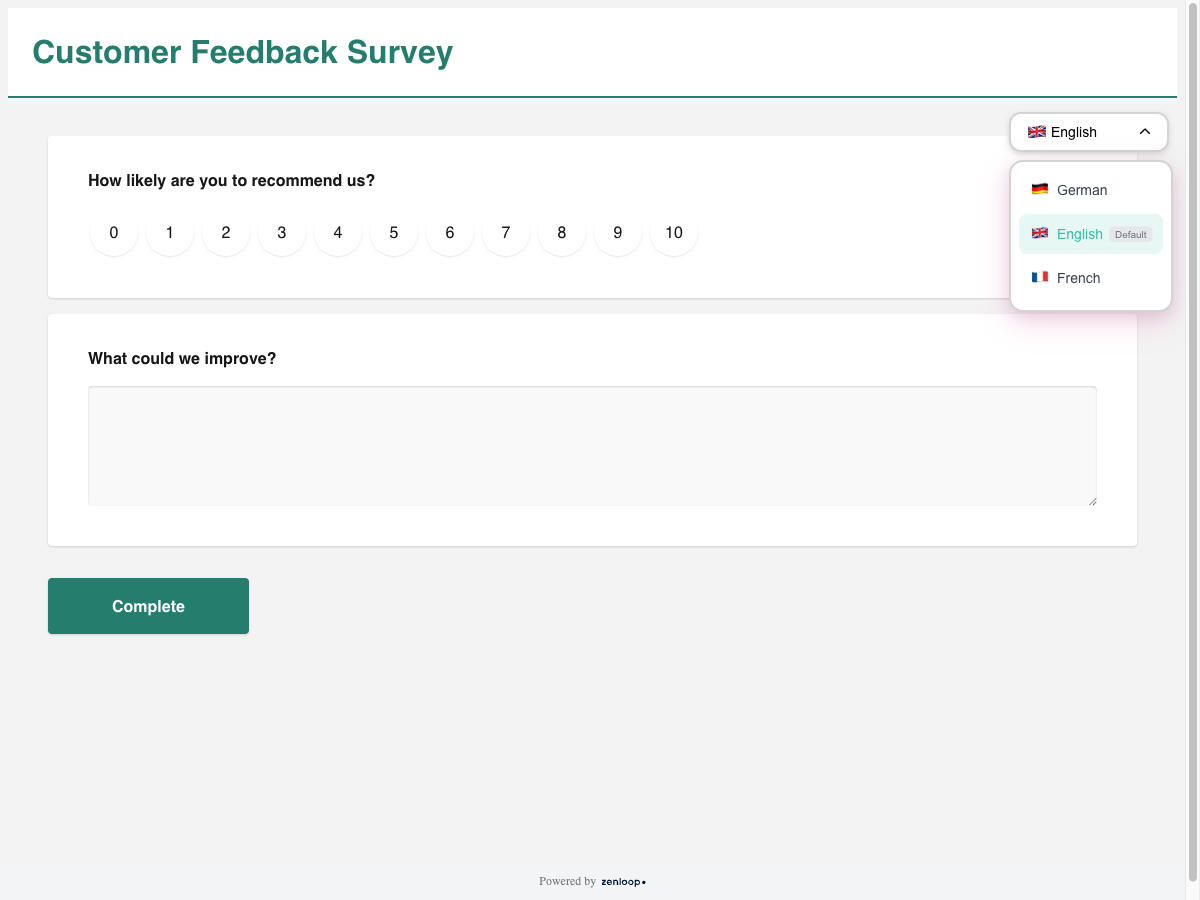
Use the language selector when respondents should be able to switch survey languages themselves.
To show it:
- Add translated text to the survey.
- Enable Display language selector dropdown in the survey settings.
- Preview the survey in each language before sharing it.
- Share the survey link or embed.
The selector appears only when it is enabled and the survey has more than one available language. Available languages are based on translated survey fields, so a single-language survey will not show the selector.
When a respondent manually selects a language, zenSurveys saves that choice for your organization. The next survey view can use that saved language before falling back to browser language or the survey default.
Filter Responses by Comment Language
In Responses, use Comment language to filter responses by the detected original language of written feedback.
The filter shows detected language codes with response counts when language data exists. If no language data is available yet, the filter may show No languages detected.
View Translated Text Answers
Open an individual response to review translated text answers. When your organization has response translations enabled and translation data exists for the response, the response drawer shows a Translations section for supported text answers.
The section shows the original language and the translated answer text. Translations are available only after translation processing has run for that response.
Good to Know
- Survey language and response translation are related, but they are handled separately.
- The language selector controls what respondents can choose while answering a survey.
- Comment language depends on language metadata stored with responses.
- Translated answers appear only for supported text answers with available translation data.
Known Limitations
- The language selector does not appear for single-language surveys or when the selector is disabled.
- Browser language only affects the displayed survey language when that language exists in the survey translations.
- A respondent's previously selected language can take priority until they choose another language or the saved preference is cleared.
- Response translations are available only for supported text answers with translation data.
- If no detected language data exists yet, Comment language may show No languages detected.