

zenSurveys supports granular access management for 2.0 surveys. Admins can decide who can access all surveys or only selected surveys, which role each person gets, and whether some users should only see response data that matches specific properties.
Access management for zenSurveys is handled in the Team settings area.
How It Works
Assign survey access to a user
- Go to Settings > Team > Management.
- Open the zenSurveys tab.
- Select a user to open their details.
- Choose whether the user should have access to All Surveys or only selected surveys.
- Assign a role for the selected access level.
The built-in roles are Admin, Manager, Analyst, and Read-Only.
Overview
zenSurveys supports granular access management for 2.0 surveys. Admins can decide who can access all surveys or only selected surveys, which role each person gets, and whether some users should only see response data that matches specific properties.
Access management for zenSurveys is handled in the Team settings area.
How It Works
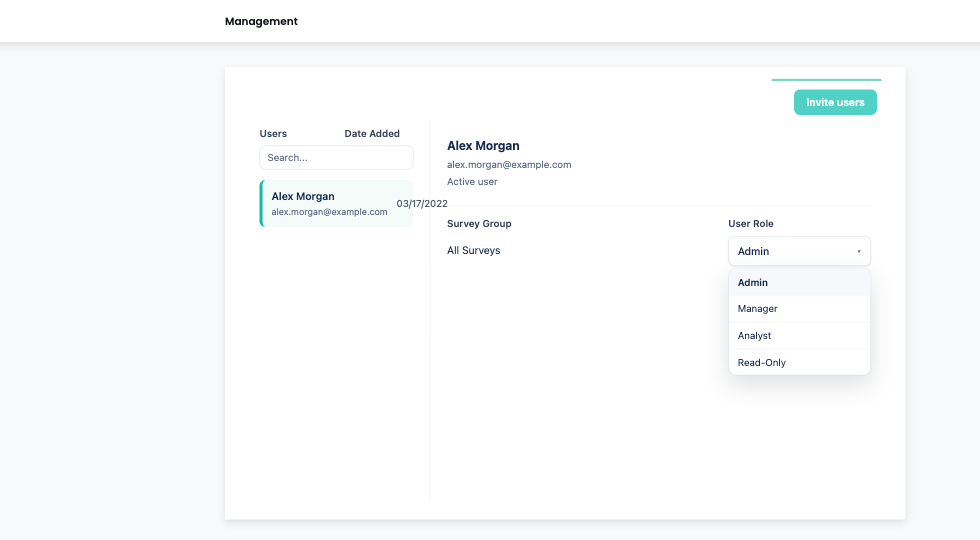
Assign survey access to a user
- Go to Settings > Team > Management.
- Open the zenSurveys tab.
- Select a user to open their details.
- Choose whether the user should have access to All Surveys or only selected surveys.
- Assign a role for the selected access level.
The built-in roles are Admin, Manager, Analyst, and Read-Only.
Manage access from a survey
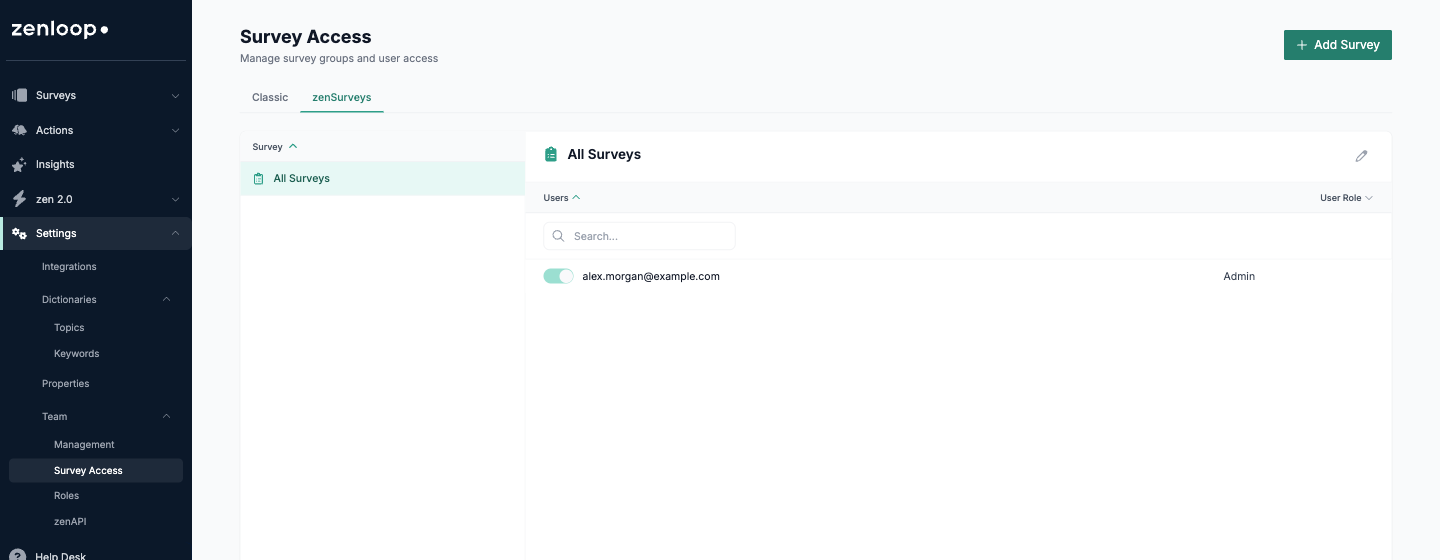
- Go to Settings > Team > Survey Access.
- Select a zenSurveys survey.
- Review which users have access to that survey.
- Add or remove users and assign the right role.
This gives admins a survey-centered view of access, which is useful when checking who can work with a specific survey.
Restrict access by response properties
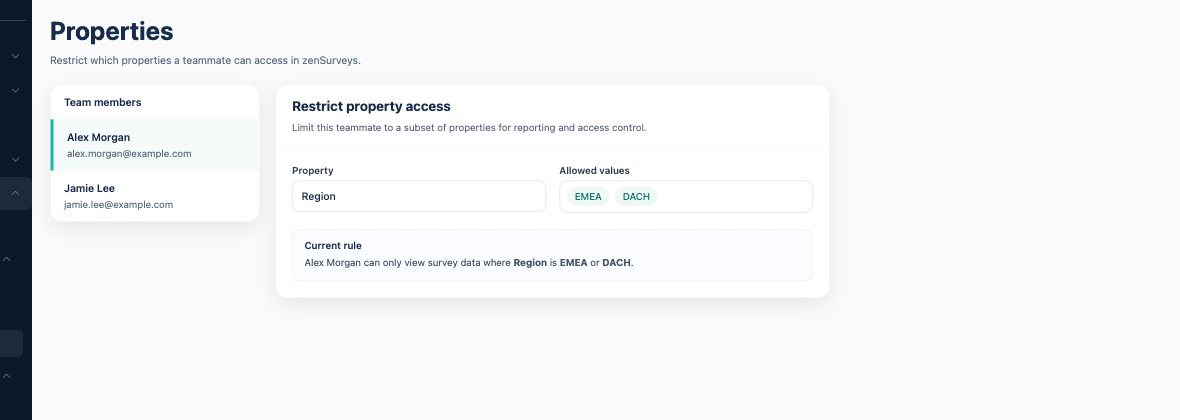
If data access by properties is enabled for your organization, admins can restrict what response data a user can see based on response properties.
- Go to Settings > Team > Properties.
- Select the user.
- Add one or more property restrictions.
- Choose the property name and allowed value for each restriction, then save the changes.
For example, a user could be limited to responses where the region property matches a specific region.
If a property should stay unrestricted, the UI can also allow access to all values for that property.
Use custom roles when available
If custom roles are enabled for your organization, you can also manage additional role templates under Settings > Team > Roles.
Configuration
zenSurveys access settings are managed in Settings > Team.
Available options depend on your organization's enabled features. Some organizations may only see basic survey access controls, while others may also have survey-specific access pages, custom roles, or data access by properties.
Known Limitations
Not every organization will see the same Team access options. Survey access, custom roles, and property-based restrictions depend on enabled features.
Property-based restrictions need to be reviewed when your response properties change.
Manage access from a survey
- Go to Settings > Team > Survey Access.
- Select a zenSurveys survey.
- Review which users have access to that survey.
- Add or remove users and assign the right role.
This gives admins a survey-centered view of access, which is useful when checking who can work with a specific survey.
Restrict access by response properties
If data access by properties is enabled for your organization, admins can restrict what response data a user can see based on response properties.
- Go to Settings > Team > Properties.
- Select the user.
- Add one or more property restrictions.
- Choose the property name and allowed value for each restriction, then save the changes.
For example, a user could be limited to responses where the region property matches a specific region.
If a property should stay unrestricted, the UI can also allow access to all values for that property.
Use custom roles when available
If custom roles are enabled for your organization, you can also manage additional role templates under Settings > Team > Roles.
Configuration
zenSurveys access settings are managed in Settings > Team.
Available options depend on your organization's enabled features. Some organizations may only see basic survey access controls, while others may also have survey-specific access pages, custom roles, or data access by properties.
Known Limitations
Not every organization will see the same Team access options. Survey access, custom roles, and property-based restrictions depend on enabled features.
Property-based restrictions need to be reviewed when your response properties change.