

A Salesforce Professional, Enterprise, Unlimited, or Developer edition with API access enabled (Professional edition requires the API access add-on, purchased separately)
Admin permissions in Salesforce (Manage Connected Apps, API Enabled, Customize Application)
An active zenloop account with at least one published zensurvey
Step 1: Create a Connected App in Salesforce
This gives zensurveys permission to create Cases in your Salesforce org.
In Salesforce, go to Setup → Apps → App Manager
Click New Connected App
Fill in:
Connected App Name: zensurveys
API Name: zensurveys
Contact Email: your admin email
Under API (Enable OAuth Settings):
Check Enable OAuth Settings
Callback URL:
https://app.zensurveys.com/auth/salesforce/callbackSelected OAuth Scopes: Add
Access and manage your data (api)andPerform requests at any time (refresh_token, offline_access)Check Require Proof Key for Code Exchange (PKCE)
Click Save
Note: Salesforce takes up to 10 minutes to activate your Connected App. Wait before proceeding.
After activation, go to Manage Connected Apps → zensurveys and note your Client ID and Client Secret
Step 2: Create a Salesforce Workflow in zensurveys
Open your survey in zensurveys
Go to the Workflows tab
Click Create Workflow
Enter a name (e.g., "Detractor Alerts to Salesforce")
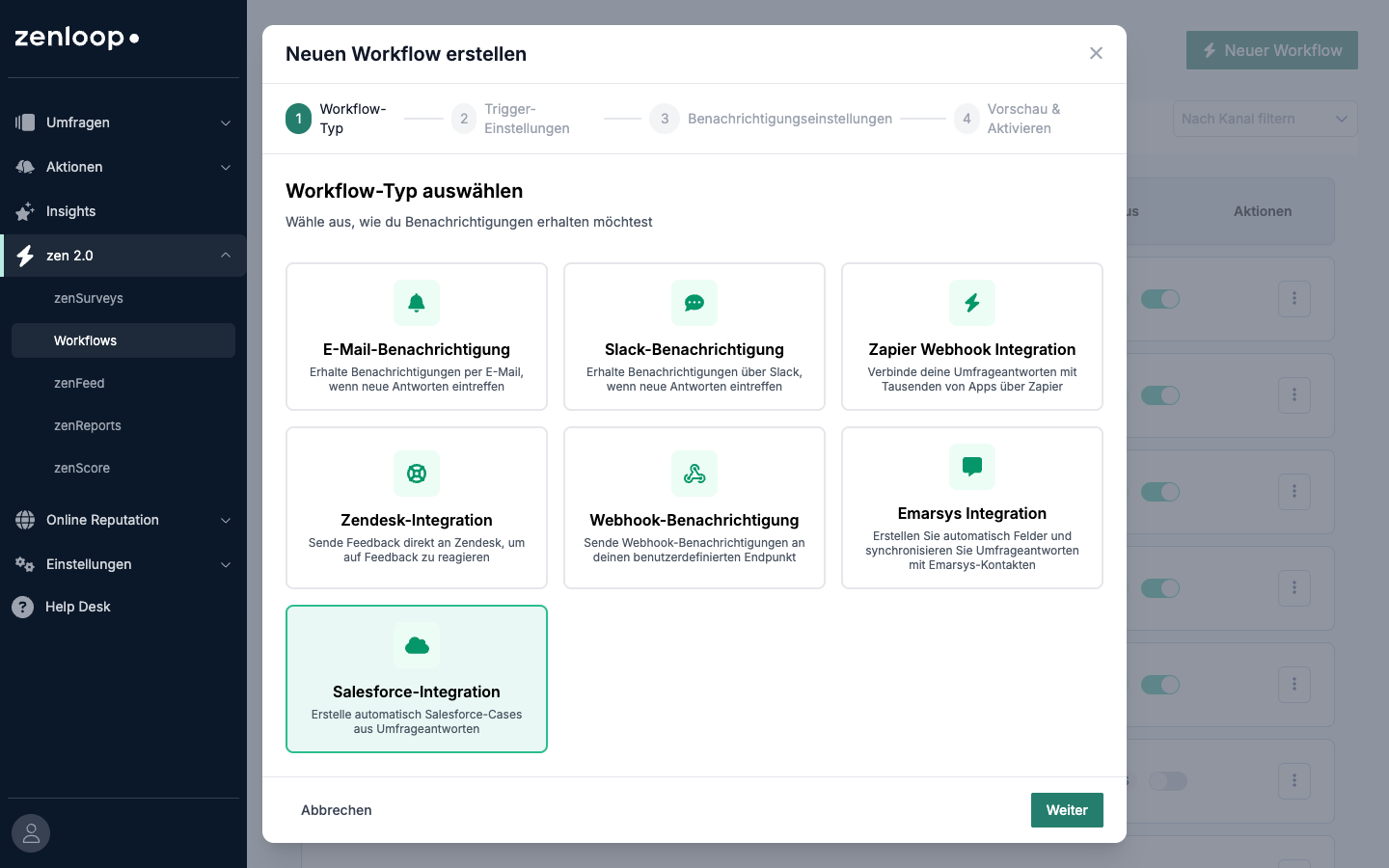
Select Salesforce as the channel
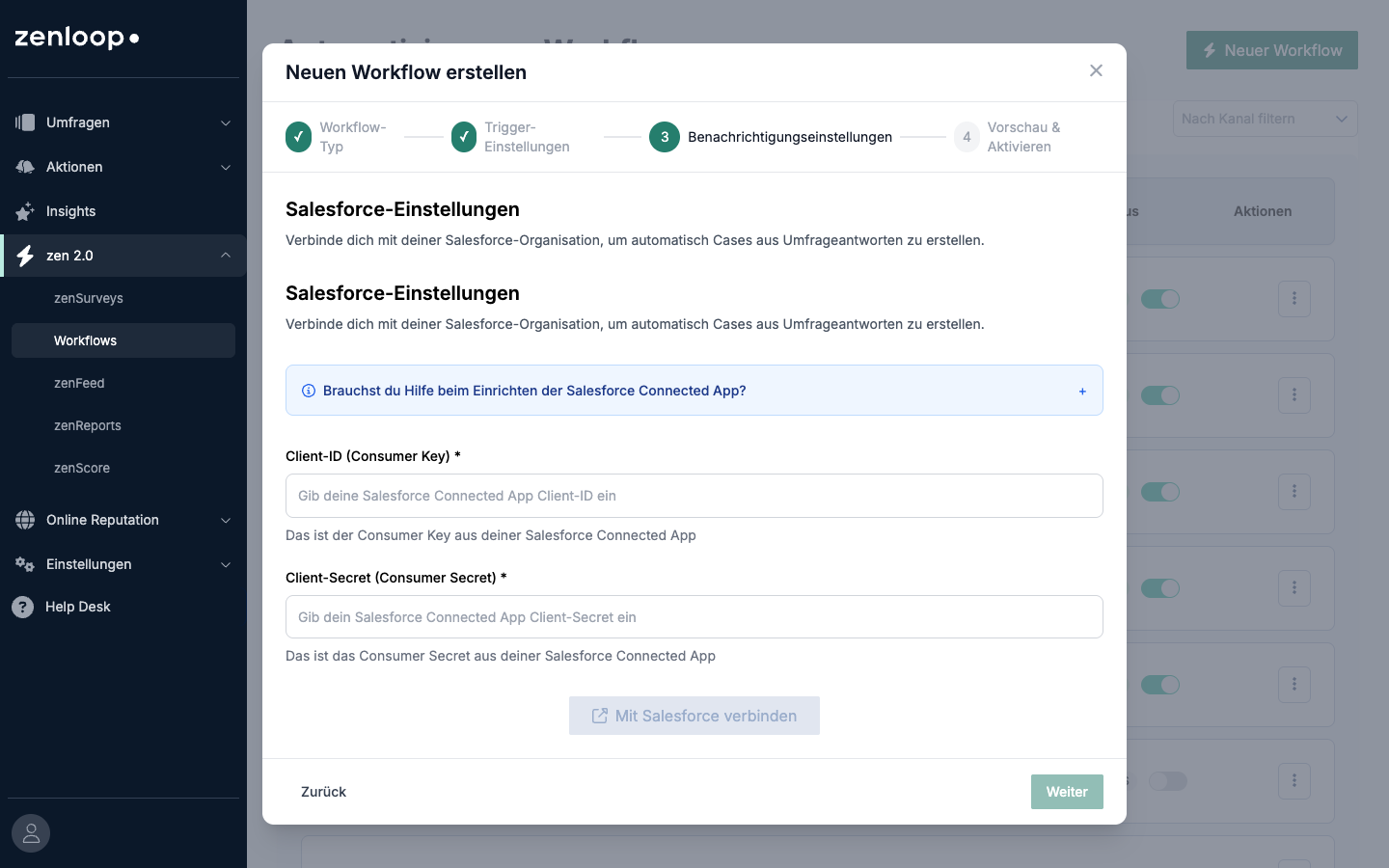
Enter the Client ID and Client Secret from Step 1
Click Connect to Salesforce
A popup window opens. Log in with your Salesforce credentials and grant zensurveys access. The window closes automatically when connected.
Step 3: Map Survey Questions to Case Fields
Once connected, zensurveys loads your available Salesforce Case fields.
For each survey question, choose which Case field it should populate:
| Survey Question | Maps to Case Field | Example |
|---|---|---|
| NPS rating (0–10) | Priority | Score 0–6 → High |
| Open comment | Description | "Delivery was late..." |
| Customer email | Contact Email | customer@example.com |
| Product category | Custom field (Product__c) | "Electronics" |
Tips:
Custom fields must use the API name with
__csuffix (e.g.,Product_Category__c)Fields you leave unmapped are skipped — no errors
If you don't map Subject, Status, Origin, or Priority, zensurveys uses defaults: Subject = "Survey Response – [workflow name]", Status = "New", Origin = "Web", Priority = "Medium"
Step 4: Set Filters (Optional)
Control which responses create Cases. You can filter by:
Score: Only detractors (0–6), passives (7–8), or promoters (9–10)
Question response: Specific answers to specific questions
Response properties: Metadata like region, product, or customer segment
All filters combine with AND logic — every condition must match
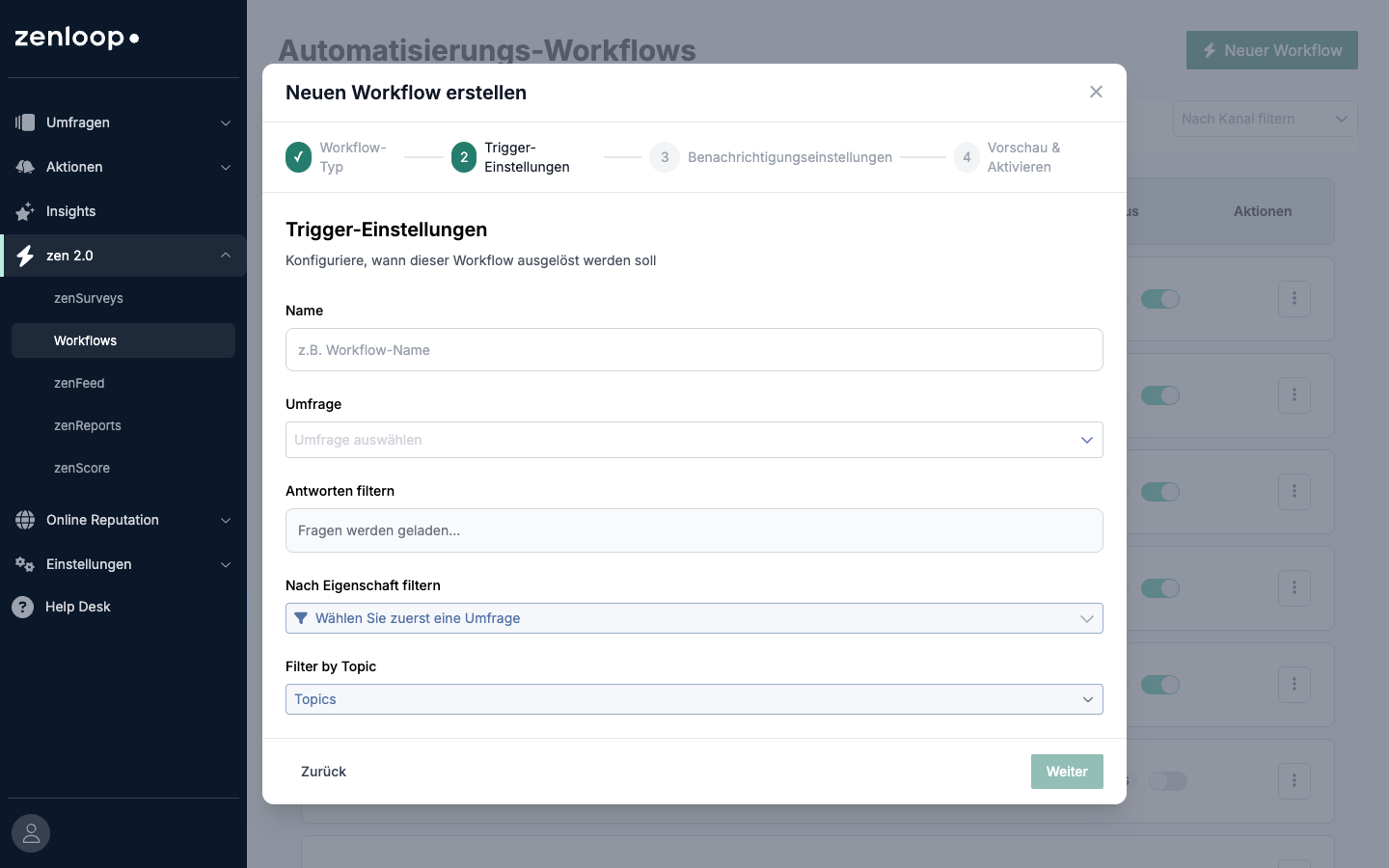
Example: "Create a Case only when the score is 0–6 AND the region is EMEA."
Step 5: Activate and Test
Toggle the workflow to Enabled
Submit a test survey response that matches your filters
Check Salesforce for the new Case
Verify that mapped fields populated correctly
How It Works Behind the Scenes
When someone submits a survey response:
zensurveys evaluates your workflow filters
If filters match, it maps the response data to your configured Case fields
A Case is created in Salesforce via the REST API
Access tokens refresh automatically — no need to re-authenticate
Data flows one direction only: zensurveys → Salesforce. There is no sync from Salesforce back to zensurveys.
Using Salesforce Sandbox
If you want to test before going live with production data:
Create your Connected App in your Sandbox org (not production)
Use the sandbox credentials (Client ID + Secret) in zensurveys
The OAuth flow will authenticate against
test.salesforce.cominstead oflogin.salesforce.com
Important: Sandbox mode applies globally to your entire zensurveys instance — you can't run sandbox and production Salesforce connections simultaneously. Contact your zensurveys admin to switch between environments.
Troubleshooting
| Problem | Likely Cause | Fix |
|---|---|---|
| "Invalid client" error during connection | Connected App not yet active | Wait 10+ minutes after creating the app |
| OAuth popup shows error | Token expired or revoked | Click Disconnect, then reconnect |
| Case not created after response | Workflow filters don't match | Review filter conditions; submit a response that matches |
| Custom field not populating | Wrong API name | Confirm the exact API name in Salesforce (case-sensitive, must end in __c) |
| Validation error from Salesforce | Case violates a Salesforce validation rule | Check your Salesforce validation rules; adjust field mappings or rule logic |
Supported Case Fields
zensurveys can populate any writeable Case field, including:
Standard fields: Subject, Description, Status, Origin, Priority, Type, Reason
Custom fields: Any field ending in
__cthat is writeable (not formula, not auto-number)Lookup fields: AccountId, ContactId (if you pass valid Salesforce IDs)
Record Types: Supported via
RecordTypeIdmapping — useful if your org uses multiple Case record types
FAQ
What happens if Salesforce is temporarily down? zensurveys retries failed requests with increasing wait times. If Salesforce remains unavailable, the error is logged and your team is notified.
Do I need to re-authenticate periodically? No. zensurveys uses refresh tokens that renew automatically. You only need to re-authenticate if someone revokes the token in Salesforce.
Can I create multiple Salesforce workflows for one survey?