

What This Does
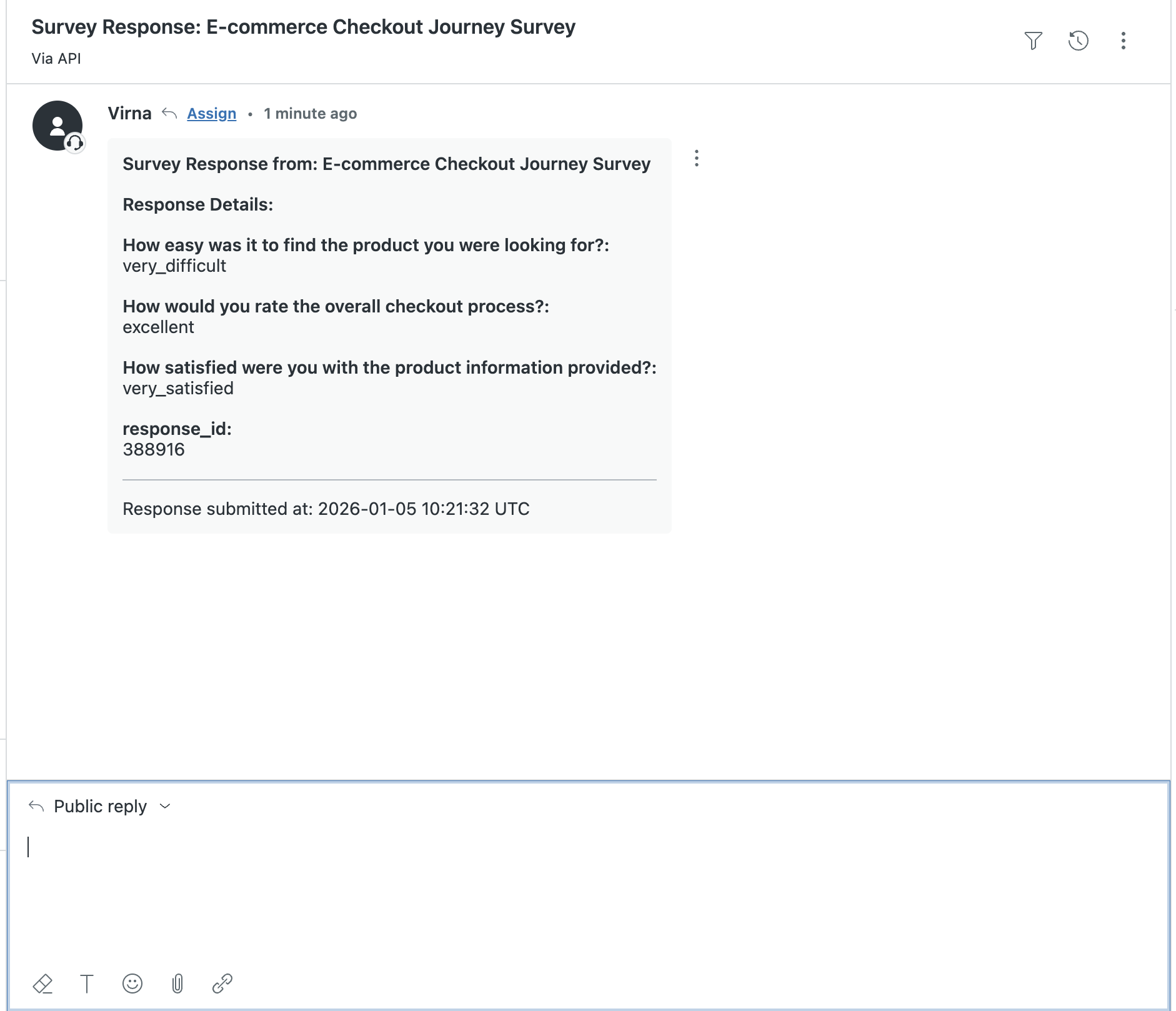
When a customer submits a zensurvey response, zenloop can automatically create a Zendesk support ticket based on rules you define (for example, low scores).
Example
Score 3 + comment “Delivery was late and damaged”
→ Zendesk ticket created for follow-up.
Why Use It
Catch unhappy customers automatically
Eliminate manual ticket creation
Give support teams full feedback context
Prioritize tickets by customer sentiment
How It Works
Survey response → Workflow rules → Zendesk ticket
Customer submits a survey
zenloop checks your workflow conditions
If matched, a Zendesk ticket is created
Support follows up in Zendesk
What’s in the Ticket
Each ticket includes:
Customer name and email
Survey score and category (Promoter / Passive / Detractor)
Customer comment
Zensurvey name
Custom properties (e.g. order ID)
Setup (5 Minutes)
Prerequisites
zenloop account with workflow access
Zendesk admin access
Zendesk subdomain (e.g.
yourcompany)
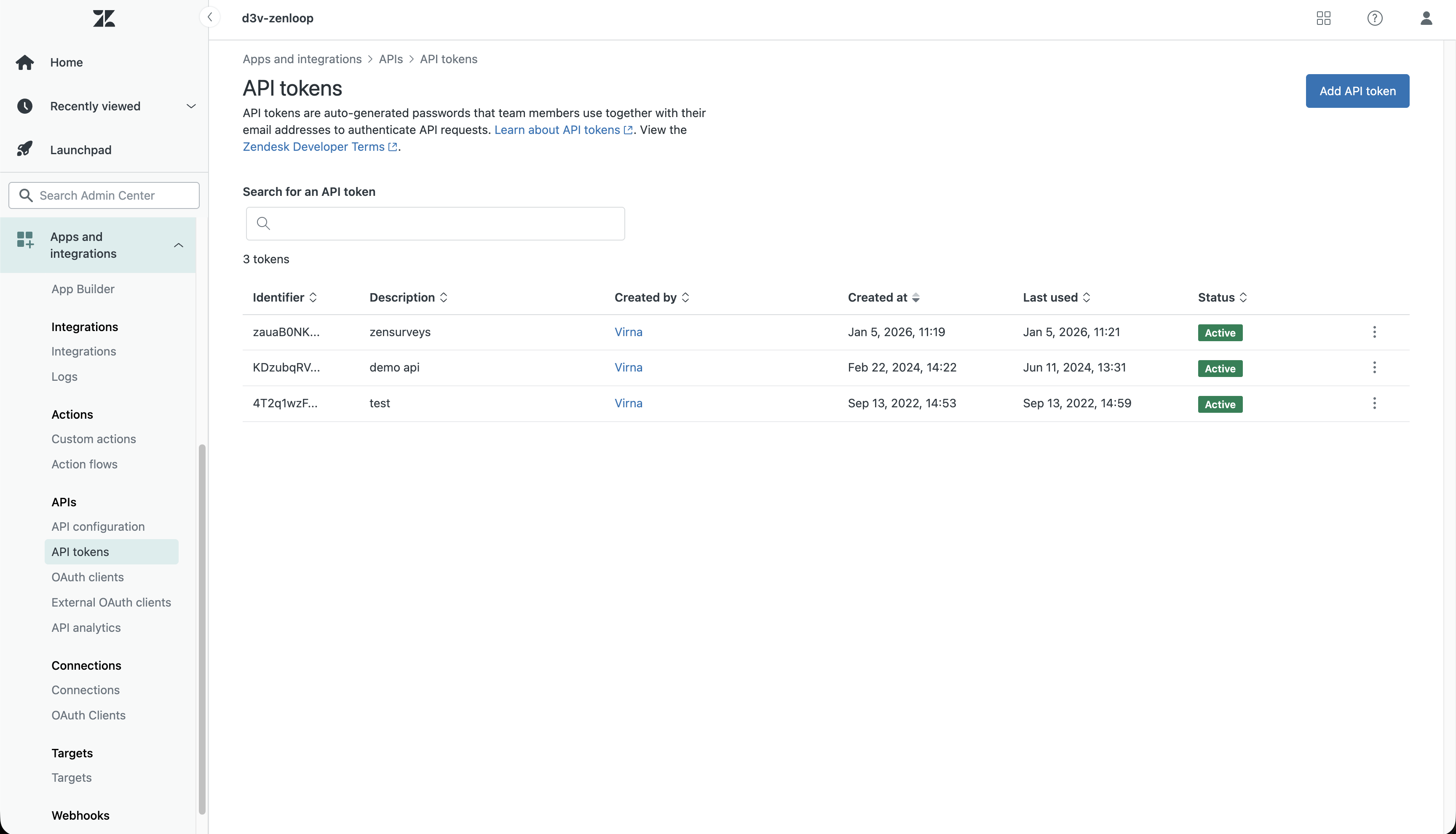
Step 1: Create a Zendesk API Token
Zendesk Admin Center
Apps and integrations → APIs → Zendesk API
Enable Token Access
Add an API token and copy it
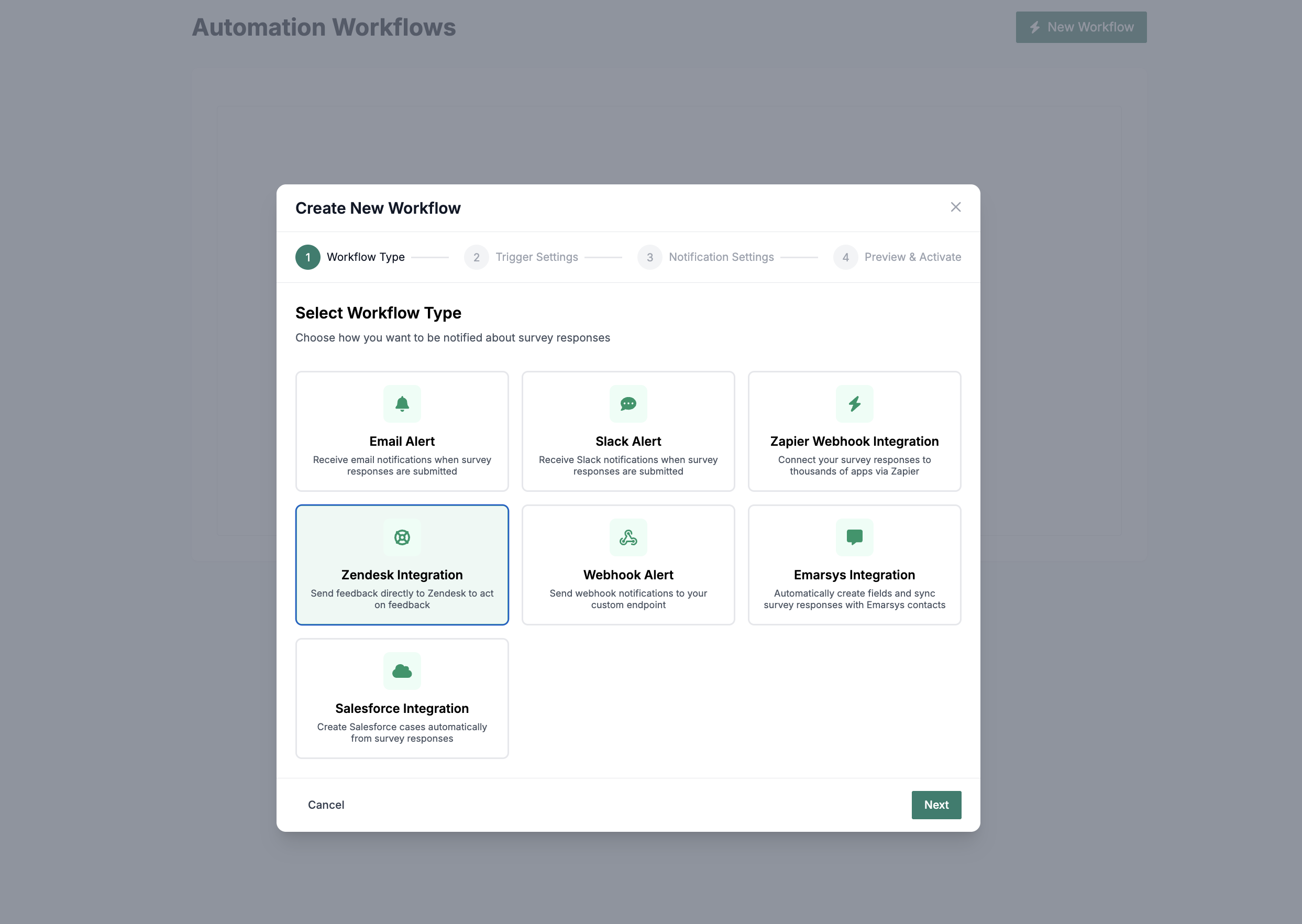
Step 2: Create a Workflow in zenloop
Log in to zenloop
Go to Surveys → Workflows
Click Create workflow
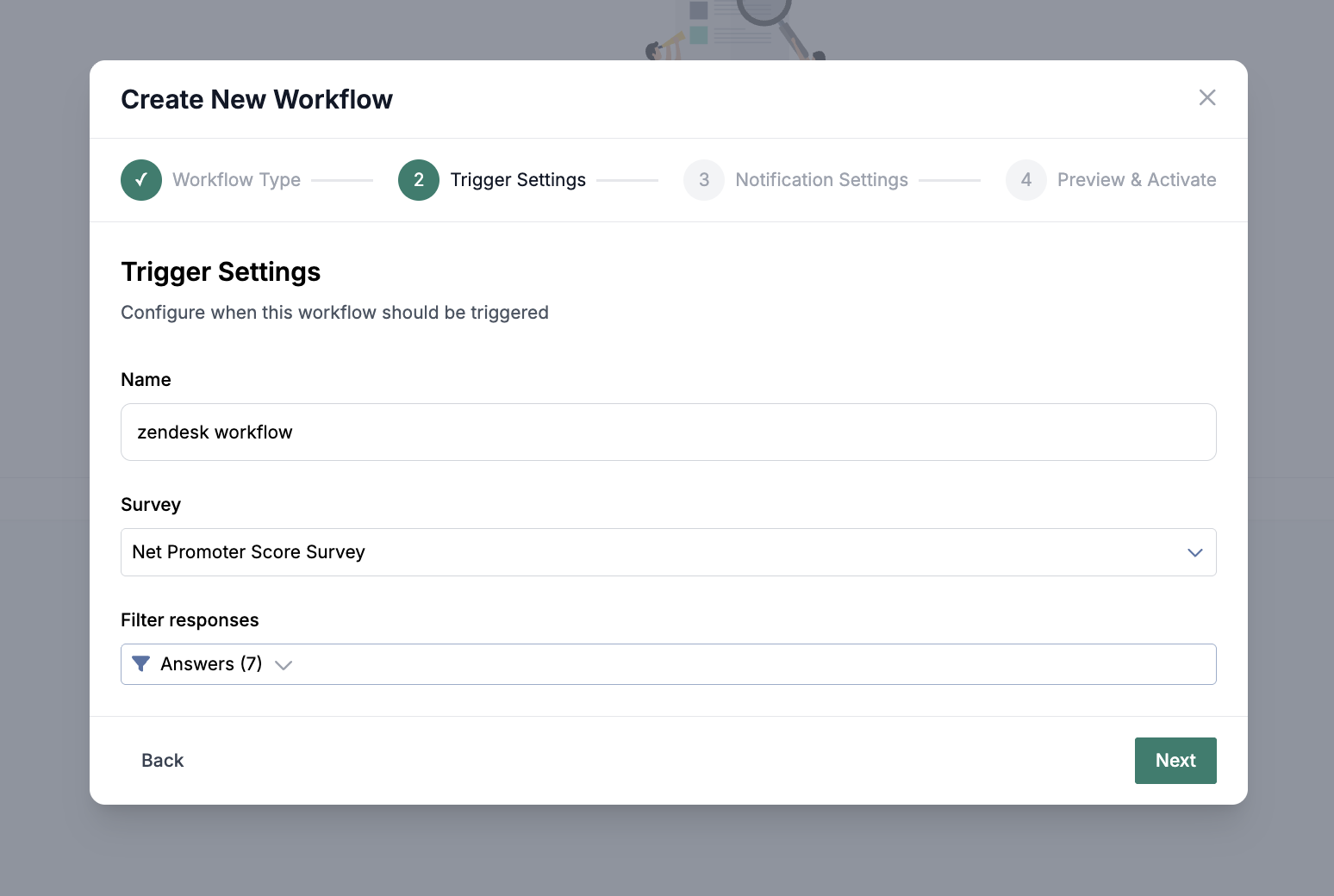
Step 3: Set Trigger Conditions
Choose when tickets should be created.
Common setups:
Detractors: Score 0–6
Negative feedback: Score 0–6 + comment
Specific zensurvey: One survey only
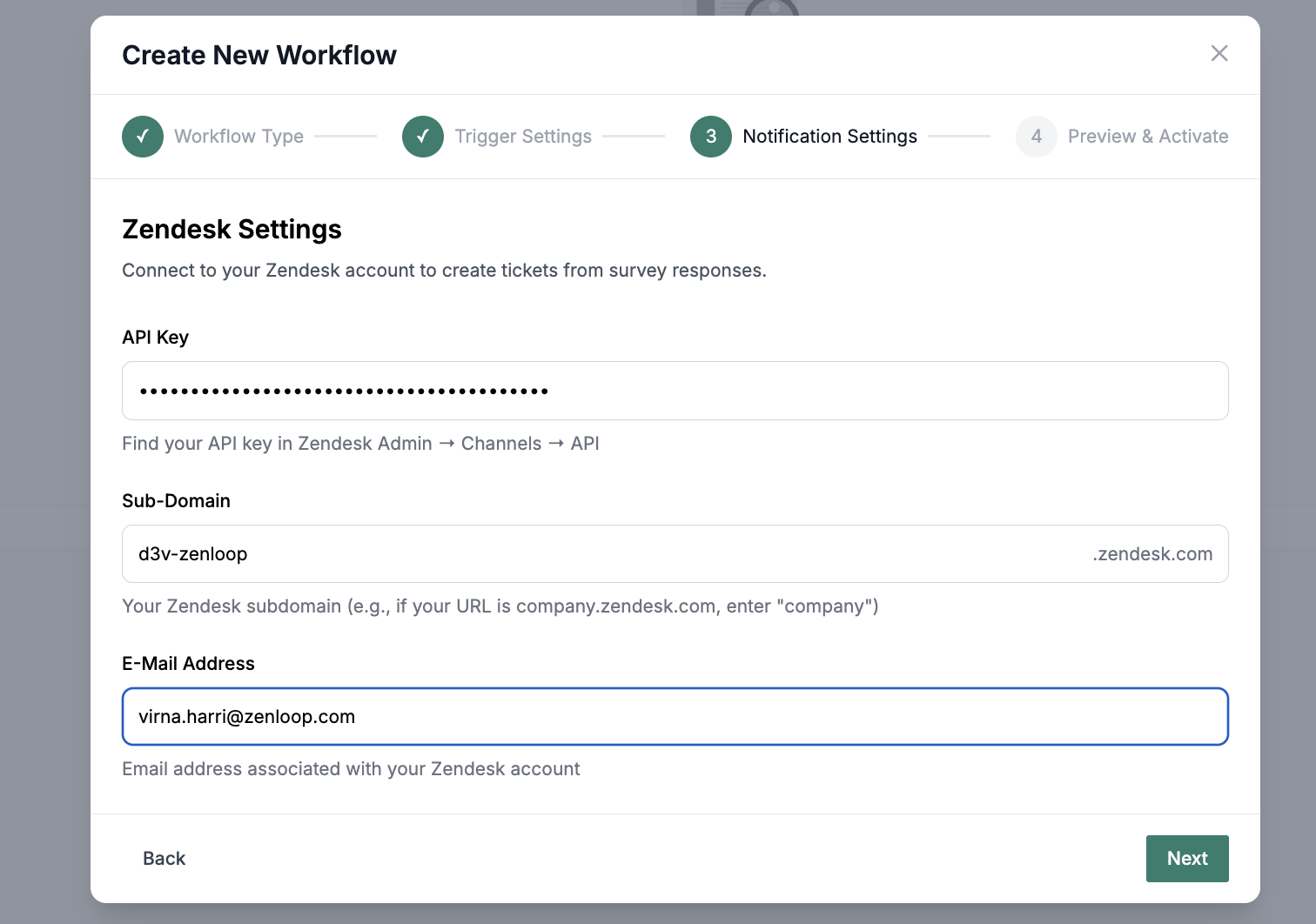
Step 4: Add Zendesk Action
Select Zendesk as the workflow action
Enter:
Subdomain (not full URL)
Agent email
API token
(Optional) Add zenloop labels as Zendesk tags
Step 5: Activate
Save the workflow
Make sure it’s Active
New matching zensurvey responses now create Zendesk tickets automatically.
Best Practices
Start with Detractors (0–6)
Use topics and tags for routing
Include order IDs or product data
Test before going live